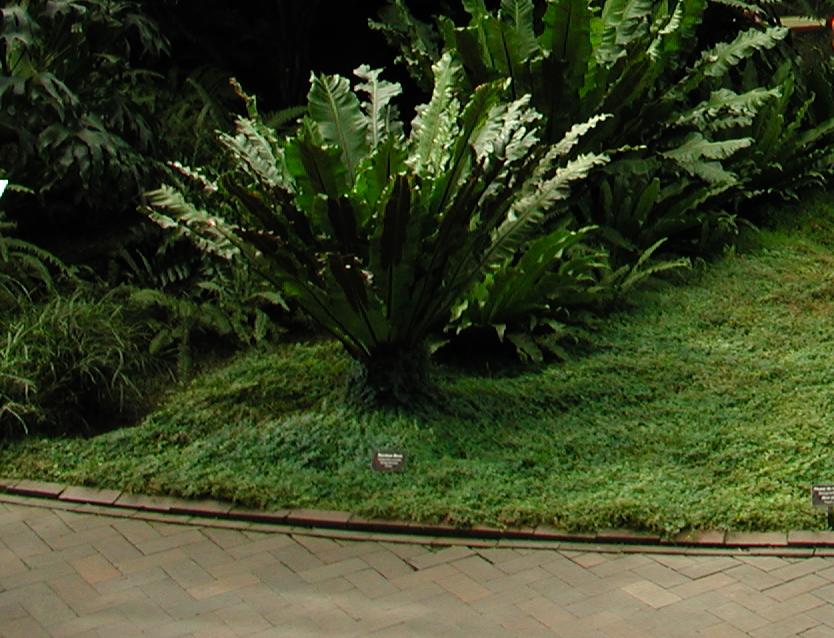
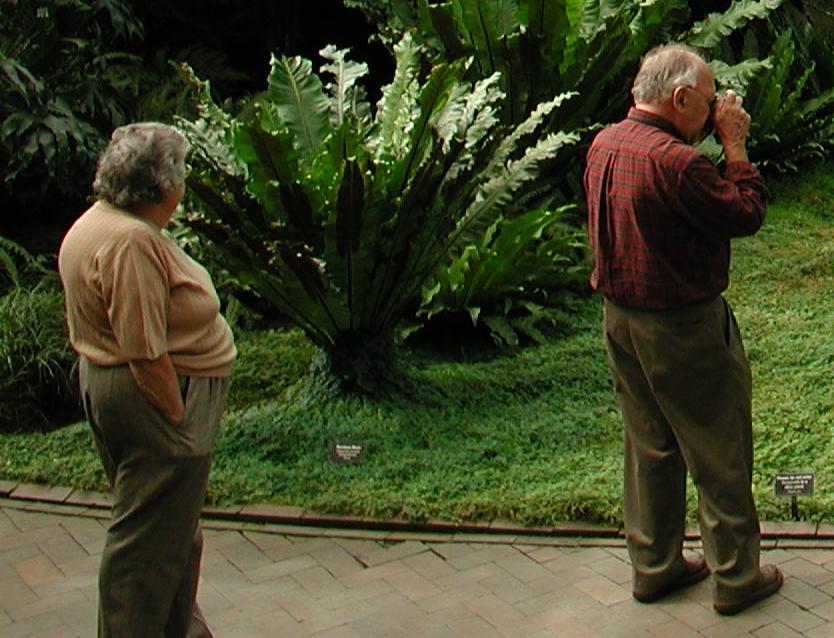
These are the starting images:
Both are crops from 2048 x 1536 Epson 3100Z photos. The object is to take the man from the second image and add it to the first image. You should perform Exercise 1, 2, and 3 first, because instructions won't be as detailed here.
-------------------------------------------------------------------------------
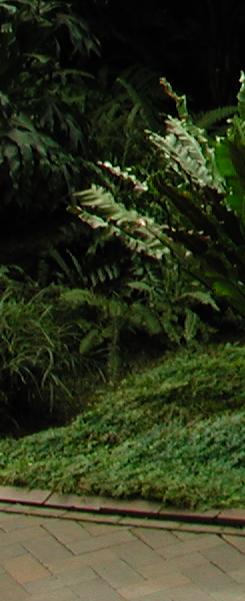
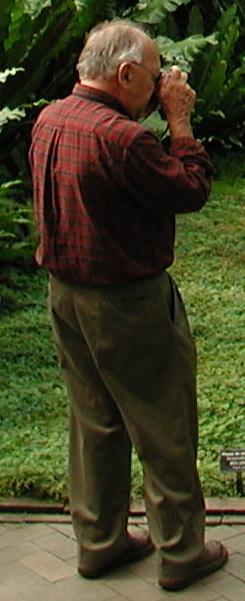
1 a. Place each image in a separate layer.
1 b. Press C key to see a combination of top and bottom layers. This is so you can position the man from the second image into the desired position within the first image.
1 c. Use One Point Registration to position the man.
1 d. Check Geom>"Set for Cropping Two Layers." (Press C again to turn off combination view.)
1 e. Perform a tight crop about the man and the background from the first image. Backup each image with Shift+F11 and Shift+F12.
-------------------------------------------------------------------------------
2 a. Enlarge both crops 8X using Box interpolation. These enlarged images are not shown here.
2 b. Click "Set F2/F3 to Clear/Set Mask"
2 c. Press P key to enter paint mode.
2 d. Paint unmask ("clear") operation over entire area outside man (or inside man and then press I key). Recall that this area is normally displayed as black, and that this display can be toggled on and off with S key.
2 e. With the masked enlargement in top layer and background enlargement in bottom layer, press = key to copy background .
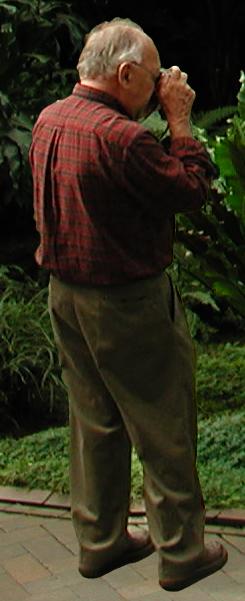
2 f. Shrink back to original dimensions using Box interpolation. The result should look something like this:
-------------------------------------------------------------------------------
3 a. Press X and then load first image into the top layer. Press X again to return to image from 2f.
3 b. Click Layer( On)>"Match Canvas Sizes."
3 c. Use C key and One Point Registration to align backgrounds.
3 d. To align precisely, turn off "combination display mode" (C key) and enter "difference display mode" by pressing D key. Aligned backgrounds will appear completely black. Use Ctrl+Arrow keys to manually align until backgrounds show as black.
3 e. Exchange layers (X key), turn back on "combination display mode" (C key).
3 f. While holding down Ctrl key, click Layer( On)>"Top Layer = Bottom Layer" to make this an F2 programmed operation.
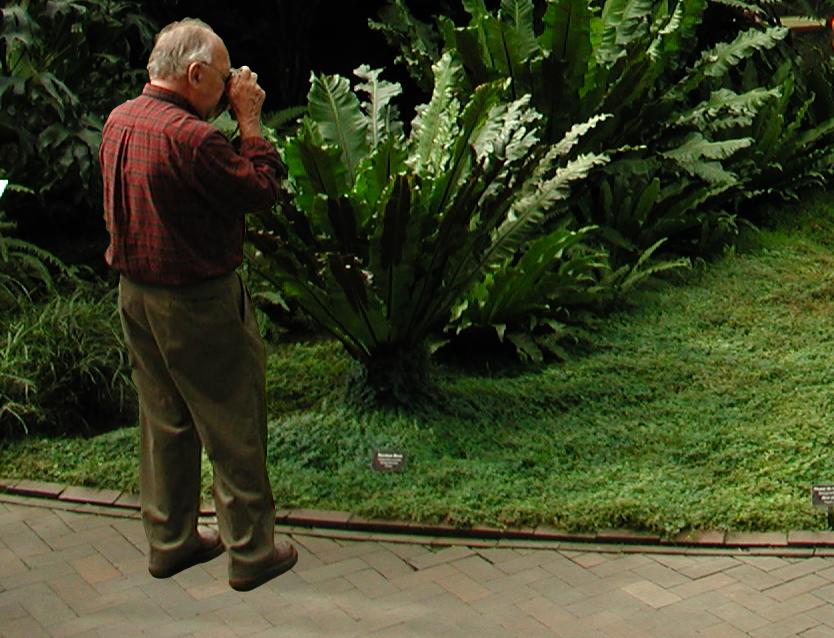
3 g. Paint the man from the bottom layer, into the top layer. It is unnecessary to avoid the background during painting because they are identical in the two layers. The result should look like this:
-------------------------------------------------------------------------------
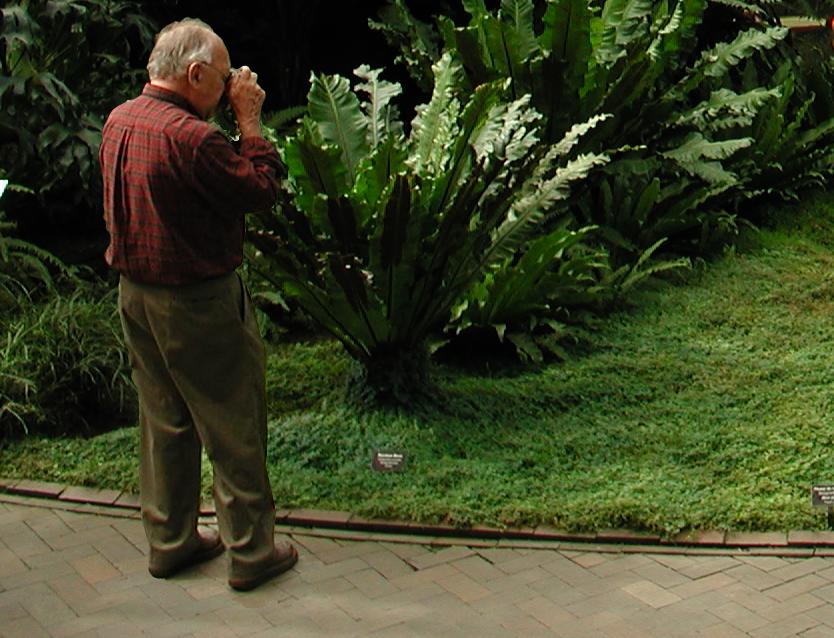
4 Finally, touch up the shadow areas at the man's feet:
-------------------------------------------------------------------------------